Connecting from Claude
You can use the Brikly Connector from either Claude.ai in your browser or the Claude Desktop app on macOS or Windows. The setup is similar in both - sign in once, then ask questions.
What you will need
- A Brikly account with CostingBrik active.
- A Claude account on the Pro, Team, or Enterprise plan (Connectors are not available on the free tier).
- Five minutes.
Connecting from Claude.ai
- Sign in to claude.ai.
- Open Settings (bottom-left menu) and go to Connectors.
- Click Add Connector (or Add custom connector).
- Fill in the Add custom connector dialog:
- Name:
Brikly - URL:
https://api.brik.ly/mcp
- Name:
- Click Add.
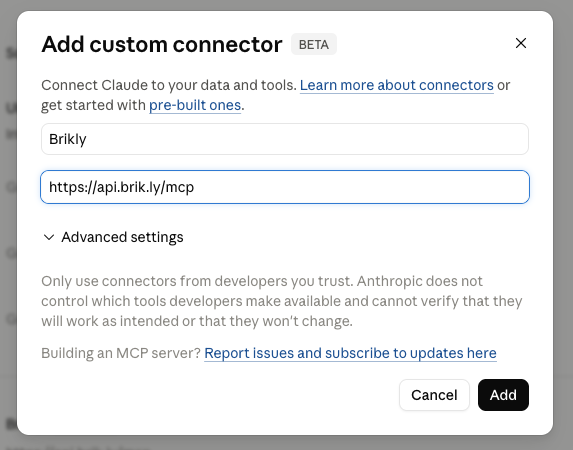
- Claude will redirect you to Brikly to sign in. Use the same email and password you use for the Brikly web app.
- Approve the access request. You will be redirected back to Claude.
- The Brikly Connector now appears in your Connectors list.
To use it, start a new conversation and ask a question about your business. Claude will detect the Connector and call the right tools automatically. You may need to approve the first tool call - after that, Claude can use the Connector freely within the conversation.
"What is my gross margin on a Latte?"
If Claude returns a margin and shows the cost breakdown, the Connector is working.
Connecting from Claude Desktop
Claude Desktop uses the same Connector flow, configured per-workspace.
- Open Claude Desktop.
- Click your workspace name in the top-left to open settings.
- Go to Connectors and click Add Connector.
- Paste
https://api.brik.ly/mcpas the connector URL. - Sign in to Brikly in the browser window that opens.
- Approve access. The window closes automatically.
The Connector is now available in every conversation in this workspace.
Disconnecting
You can remove the Connector at any time:
- Claude.ai: Settings → Connectors → Brikly → Disconnect.
- Claude Desktop: Workspace settings → Connectors → Brikly → Remove.
When you disconnect, Claude immediately loses access to your Brikly data. Any cached responses inside an existing conversation will still be visible, but no new tool calls can run.
What Claude can see
When you connect, Claude receives a server-level briefing that explains:
- That Brikly is a UK hospitality SaaS for cafe and coffee shop operators.
- That the Connector is read-only - so it should never offer to "update" a price for you.
- That recipe IDs and ingredient IDs are scoped to your account only.
- The vocabulary it needs (
recipe_type,cost_per_measurement,gross_margin_net, etc.) so it interprets your data correctly.
This grounding lands once per conversation. If you start a new chat and Claude seems to be guessing - or asking what kind of business you run - that briefing has not loaded. Try disconnecting and reconnecting.