Troubleshooting
If the Connector is not behaving the way you expect, work through the checks below before getting in touch.
"The assistant doesn't know what Brikly is"
When you connect, the Connector sends a one-page briefing to the AI assistant - what Brikly is, what data is available, currency conventions, and so on. If the assistant is asking what kind of business you run, or quoting in the wrong currency, that briefing has not loaded.
This is almost always caused by stale connection state on the AI assistant side. The briefing is sent once when the connection opens. If your session opened before a Brikly update, you are still on the old briefing.
Fix: disconnect and reconnect.
- Claude.ai: Settings → Connectors → Brikly → Disconnect, then reconnect from the same screen.
- Claude Desktop: Workspace settings → Connectors → Brikly → Remove, then re-add it.
- ChatGPT: Settings → Apps & Connectors → Brikly → Disconnect, then reconnect.
After reconnecting, start a fresh conversation. The new briefing lands on the next tool call.
"Something the docs describe is missing from the answer"
Some Brikly updates add fields to what a tool returns. The cost-completeness flags on costing_list_recipes (with a recipe_id, and on the include_cost_breakdown payload) are a recent example. Claude caches each tool's declared shape per connection, so a connection opened before the update keeps the old shape and the new fields never arrive.
The fix is the same as above: disconnect, reconnect, and start a fresh conversation.
"It cannot find a recipe I know exists"
A few possibilities:
The name does not match. The Connector matches recipe names case-insensitively but does not guess. "Latte" will find your Latte recipe. "Lattte" (typo) will not. Try a partial name: costing_list_recipes(search="latt").
The recipe is inactive. Inactive (retired) recipes are excluded by default. If you ask about something you've recently retired, the assistant will return "not found". You can ask the assistant to "include inactive recipes" if needed.
The recipe belongs to a different tenant. The Connector is strictly scoped to your account. If you have multiple Brikly accounts, make sure you connected the right one. Sign out and reconnect using the correct credentials if needed.
"Margins are quoted as ratios, not percentages"
If the assistant says "margin is 0.74" rather than "margin is 74%", the briefing has not loaded. Disconnect and reconnect (see above).
"Currency is wrong (showing $ instead of £, or vice versa)"
Brikly stores costs in your tenant's base currency. The assistant should read the symbol from the response and not assume a default. If it is consistently quoting in the wrong currency, that is a sign the briefing has not loaded - disconnect and reconnect.
If your tenant's base currency itself is wrong, that is a Brikly settings issue, not a Connector issue. Check Settings → Region in the Brikly web app.
"The assistant tried to update a price for me"
The Connector is read-only and the briefing tells the assistant this clearly. If it ever offers to "update", "edit", or "save" something on your behalf, that is a hallucination - the action will not actually run, but the response is misleading.
Treat any write-style suggestion as a recommendation only. To actually change a price, edit a recipe, or add a supplier, use the Brikly web app.
If you see this happening regularly, please let us know - it is feedback we use to tighten the briefing.
"It keeps asking me to approve every tool call"
Both Claude and ChatGPT prompt for the first tool approval per conversation. After that they should run silently within the same chat. If you are being prompted for every single call, check the AI assistant's settings:
- Claude: Settings → Tools & approvals - some workspaces require explicit approval per call. This is a Claude-side preference, not a Brikly setting.
- ChatGPT: Settings → Apps - similar approval-mode preference.
"The Connector worked before but now returns errors"
If you suddenly see authentication errors, try disconnect and reconnect first. If errors persist after reconnecting, the Brikly API may be in a maintenance window - check status.brik.ly (if available for your account) or contact support.
"The assistant says a call was rate limited"
Each Connector connection (one authorisation in one assistant) may make 60 tool calls a minute. A normal conversation uses a handful; the ceiling exists so a runaway loop in one assistant cannot slow the Connector down for everyone else. When it is reached the assistant is told to retry in a minute, and the refused call is not run.
Wait a minute and ask again. The window resets on its own. Listing the tool catalogue does not count against the limit, so a reconnect is never needed.
If it keeps happening, the assistant is probably fanning out one request into many tool calls (for example fetching every recipe individually). Ask it to use the list tools with a search or category filter instead.
"I want to revoke access without disconnecting"
You can revoke the OAuth token directly from the Brikly web app:
- Sign in to the Brikly web app.
- Go to Settings → Connections.
- Find the entry for the AI assistant in question.
- Click Revoke.
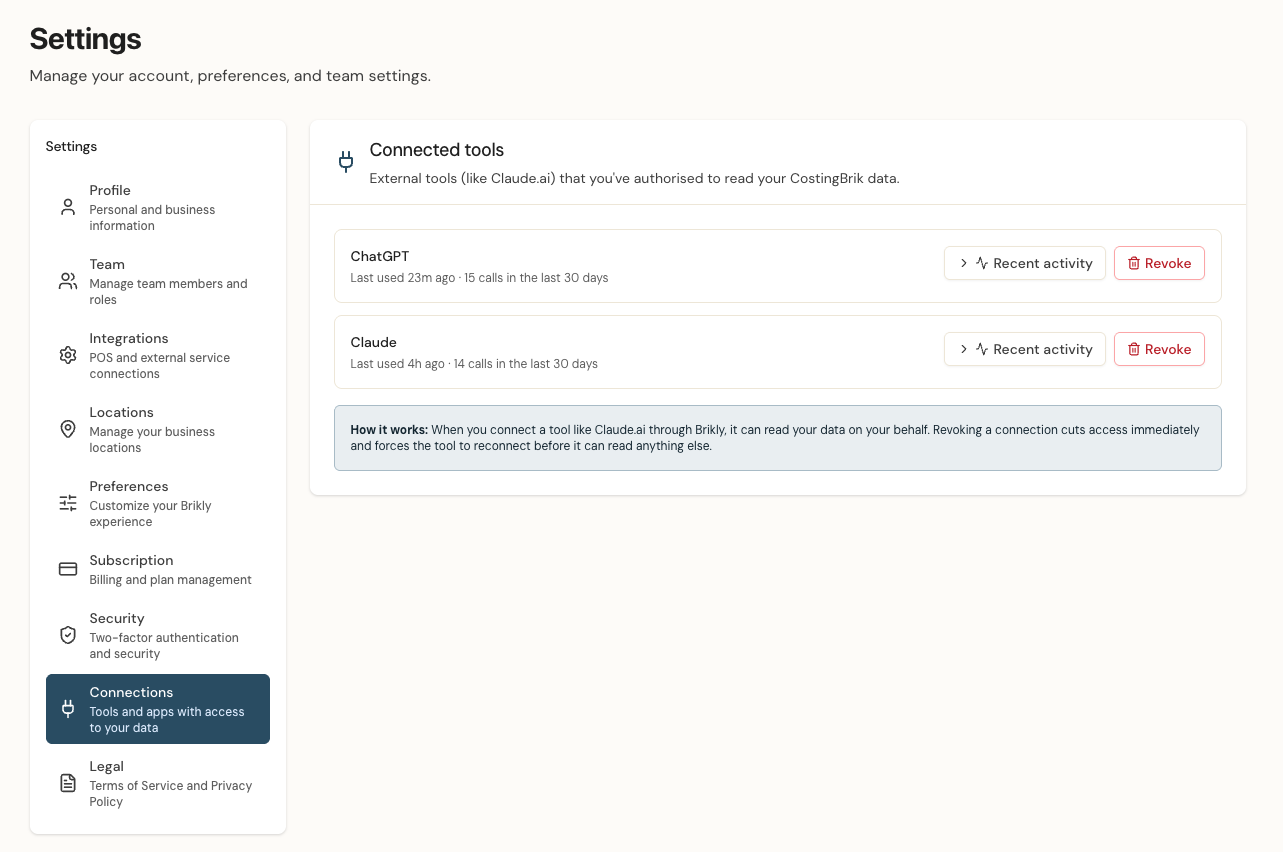
This invalidates the token immediately. The assistant will get an authentication error on its next call. To reconnect, you will need to remove the Connector in the AI assistant and re-add it.
You can also use this page to spot-check Recent activity - which tool was queried, when, and from which assistant. Useful if something feels off and you want to see exactly what the AI assistant has been pulling.
Still stuck?
Get in touch - tell us which AI assistant you are using and what you asked. Brikly logs every Connector tool call, so we can usually trace what happened.